Natural, appropriate pauses are essential for the clarity and impact of any text-to-speech (TTS) voiceover. Whether you’re producing a podcast, audiobook, educational material, or video narration, well-placed pauses make your content sound more authentic, fluent, and engaging to listeners.
With FineVoice Text to Speech, you have full control over your audio output, including speech pacing, tone, pitch, emotion, and other advanced customization features. This practical guide will show you how to add a pause using FineVoice’s TTS tool, so your voiceovers stand out with realistic speech that captures your audience’s attention.
Method 1: Add Punctuation Marks for Smaller Breaks
The simplest way to insert brief pauses is by using punctuation marks in your text. FineVoice Text to Speech accurately recognizes your language and sentence structure, ensuring accurate pronunciation and a natural flow in the generated speech. To make your narration sound smoother and more authentic, simply include punctuation—such as commas, periods, or ellipses—wherever you want the voice to pause.
How it works:
Comma (,): Adds a slight pause, perfect for separating clauses or listing items.
Period (.): Creates a more noticeable pause, signaling the end of a sentence.
Ellipsis (…): Suggests hesitation or a longer pause for dramatic effect.
| Example:Hello, my name is Marie. Today, we’re going to discover FineVoice… Ready to begin? |
Method 2: Split Text into Paragraphs for Longer Breaks
FineVoice TTS offers two voice generation models, and the TTS Max model allows you to insert the keyword (break) to add pauses in your text-to-speech audio. Splitting your script into separate paragraphs also creates natural breaks. The system recognizes these cues and generates more pronounced pauses, making your content easier to follow and sound more professional. No advanced editing skills are required—just experiment and find the pacing that best suits your project.
How it works:
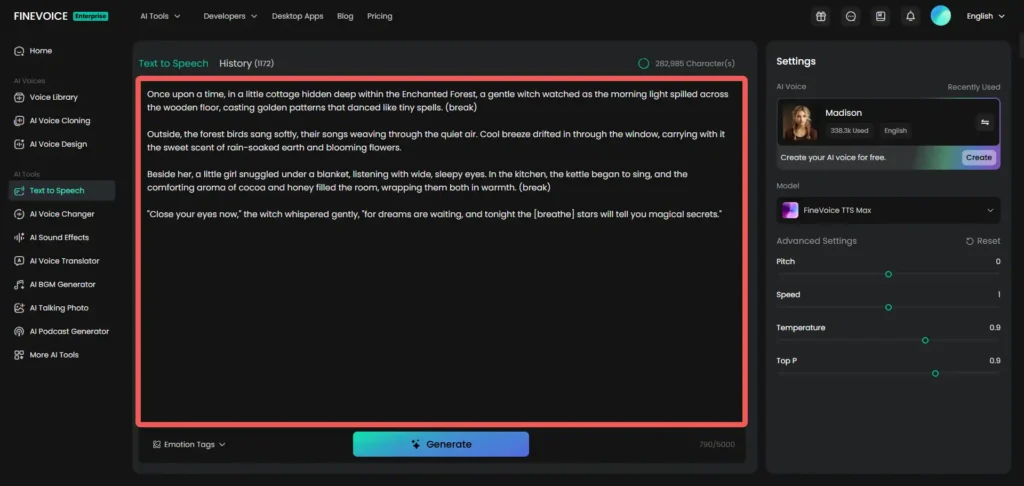
Insert (break): Type (break) wherever you want a longer pause. FineVoice will process this and create a clear gap in the audio.
Paragraph splitting: Divide your script into multiple paragraphs. Each paragraph break triggers a pause, which is ideal for transitions or giving listeners time to absorb information.
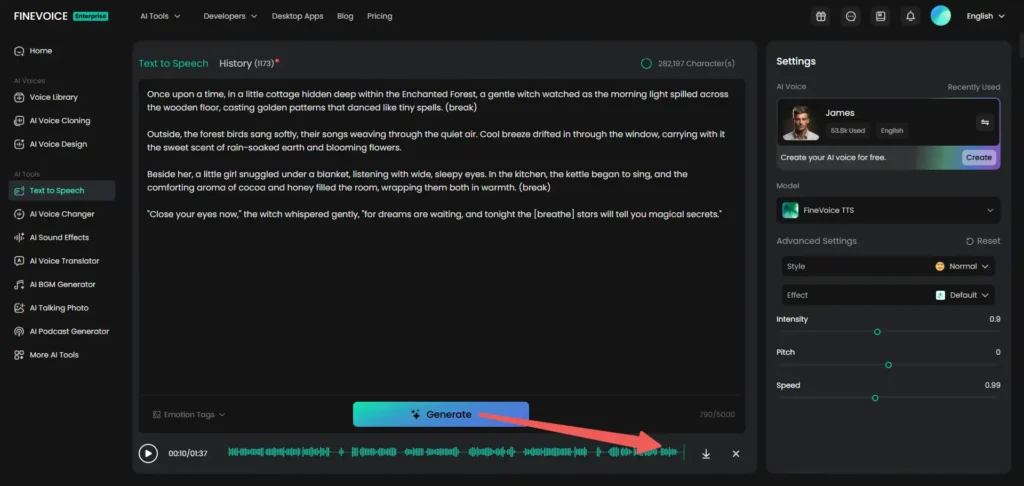
| Example:Once upon a time, in a little cottage hidden deep within the Enchanted Forest, a gentle witch watched as the morning light spilled across the wooden floor, casting golden patterns that danced like tiny spells. (break) Outside, the forest birds sang softly, their songs weaving through the quiet air. Cool breeze drifted in through the window, carrying with it the sweet scent of rain-soaked earth and blooming flowers. |
How to Use FineVoice Text to Speech
Delivering ultra-realistic, context-aware voice synthesis and precise voice cloning, FineVoice Text to Speech empowers you to generate high-quality voice content for various scenarios. With FineVoice TTS, you can explore a full suite of features, discover the perfect voice for your project, experiment with different texts and effects, and easily save or share your creations.
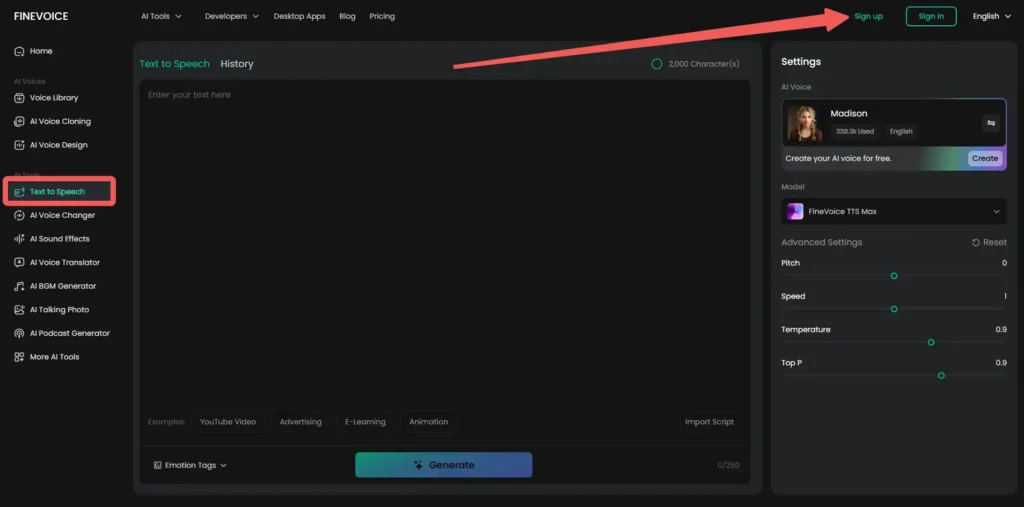
Step 1. Open FineVoice Text to Speech
Go to FineVoice Text to Speech and sign up or sign in.
Step 2. Enter Text
Type or paste any text into the TTS tool, and add pauses exactly where you need them.
Step 3. Adjust Settings
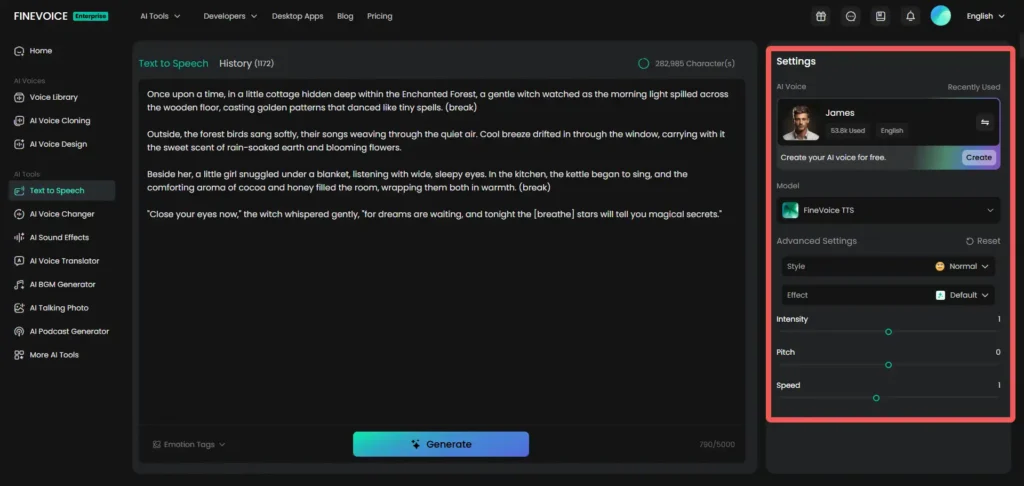
Select your preferred voice from the library and adjust the speech pitch and speed as needed.
Step 4. Convert Text to Speech
Click the “Generate’’ button to convert your text into lifelike speech. Once complete, preview and download the audio in MP3.
All your conversions are stored in the “History” section, where you can easily track and manage your text-to-speech audio files.
Why FineVoice Makes Pausing Effortless
FineVoice offers cutting-edge Text to Speech technology paired with an intuitive interface, giving creators flexibility without complexity. You don’t need to mess with audio software or complicated markup—just focus on your script and storytelling. FineVoice ensures your pauses sound natural and intentional, creating professional voiceovers with ease and confidence.
Whether you’re narrating a story, explaining a concept, or delivering instructions, these pause techniques help your voiceovers connect with listeners and keep their attention. Try both methods and discover which works best for your projects!
Ready to create smoother, more engaging voiceovers? Sign up for FineVoice and experience the difference today.