
You’ve arrived in a new country, turned on your travel eSIM and opened a map to find your accommodation. Everything loads. So far, so good.
The next morning, you open your laptop to join a client call. The accommodation’s Wi-Fi is unreliable, so you try sharing your phone’s connection. Then you realise you’re not sure whether your data plan includes hotspot use—or how much data the call might take.
Getting your phone online is a great start. But if you plan to work while travelling, there are a few other questions worth answering before an important call or deadline.
Here’s how to think about your connection, your accounts and your backup options without turning your trip into an IT project.
An eSIM Gets You Connected. A VPN Has a Different Job
A travel eSIM gives a compatible phone access to a mobile plan without needing to insert another physical SIM card. Depending on the plan, you may be able to use mobile data in your destination while keeping your usual number on another line. Device, carrier and plan support can vary.
A VPN does something different. It creates an encrypted connection between your device and a VPN provider, which can add a layer of privacy to your internet connection.
You can use mobile data without a personal VPN, and you can use a VPN over either mobile data or Wi-Fi. They are not competing products: one provides a way to get online; the other changes how supported traffic is routed once you are connected.
For example, a remote worker who wants extra connection privacy on their own device might consider a service such as X-VPN. It’s still important to choose a provider carefully and understand its privacy practices.
Neither an eSIM nor a VPN guarantees that your connection will be fast enough for a call. And a personal VPN cannot replace a work system your employer or client specifically requires you to use.
Check Whether Your Phone Can Share Its Data
Back to that client call. Your phone has a signal, but your laptop needs a connection too.
A mobile hotspot can be a useful backup when accommodation Wi-Fi is slow or temporarily unavailable. Before relying on it, check your travel plan’s terms.
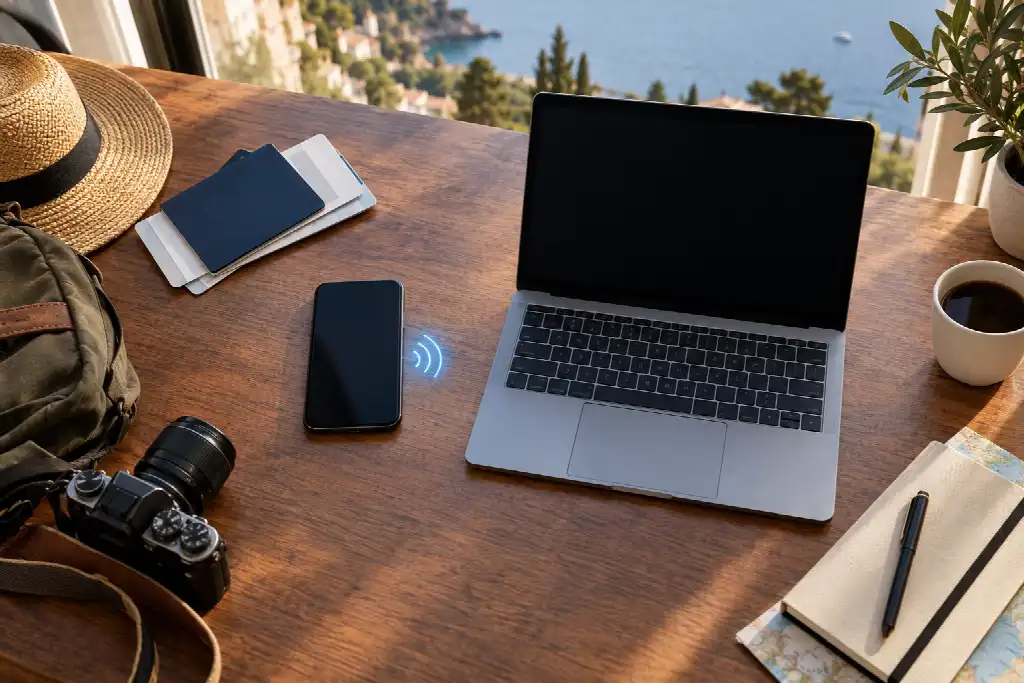
Some plans allow hotspot use; others may limit it. A plan described as “unlimited” may also have conditions that affect the amount of data you can share or the speed available after a certain point. The details depend on the provider and plan.
Think about the work you need to do. Sending a few emails and joining a long video call place different demands on a data allowance. If your trip includes frequent calls or large file uploads, a small plan that works nicely for maps and messaging may not be enough for your laptop.
It is worth trying the hotspot before the day you need it. Connect your laptop, open the tools you use for work and make sure the connection behaves as you expect. You are checking whether your setup works—not assuming a successful test guarantees the same signal everywhere.
Keep Your Usual Number in Mind
A travel data plan can solve one problem while leaving another one untouched: receiving a sign-in code sent to your usual phone number.
Many work tools, banking services and email accounts use an extra verification step when you sign in. Some send a code by text. If you switch off your home line, change devices or cannot receive messages at your destination, you may find that knowing your password is not enough.
On supported dual-SIM devices, you may be able to keep your home line active while using a travel eSIM for data. But that does not automatically mean calls and texts on the home line will be free. Apple notes that keeping both lines active while travelling may still result in roaming charges on the home line.
Before leaving, check with your carrier whether you can receive the messages you need abroad and what charges may apply. Also review the backup sign-in methods offered by your important accounts.
Depending on the service, that might include an authentication app, a passkey, a security key or backup codes. The available options and setup process vary, so make changes while you can still sign in comfortably.
For work accounts managed by an employer or client, follow their instructions rather than changing authentication settings on your own.
A New Location Can Lead to an Extra Sign-In Check
Imagine you arrive at your accommodation, open your usual email account and see a message asking you to confirm it’s really you.
That can be a legitimate security check. A service may notice a sign-in from a new location or device and ask for another form of verification. Google, for example, says it may request extra steps when it notices something different about how you sign in.
The important distinction is whether you actually started the sign-in.
If you just opened the account yourself, follow the service’s normal verification process. If you receive an unexpected prompt when you are not trying to sign in, do not approve it simply to make the notification disappear.
It also helps to know how to reach the account directly. If an email claims there is a problem, opening the service through a saved bookmark or its official app gives you a way to check without relying on the message’s link.
A VPN does not remove the need for these checks. Depending on the service and connection, a sign-in through a different network may also appear unusual. Treat any unexpected alert as something to review, rather than assuming it is either harmless or proof that your account has been compromised.
Decide What You Need Before You Lose a Connection
Not every internet interruption needs an emergency solution. Sometimes the most useful preparation is having enough information available to continue with another task.
Before you travel, think about the files and details you would want if you were offline for an hour:
- The address and contact details for your accommodation.
- Information needed for your next meeting.
- A working copy of a document you plan to edit.
- Instructions for reaching your employer’s or client’s support contact.
- Travel details you may need to show on arrival.
For work files, follow any rules your organisation or client has about offline copies. Sensitive documents may have specific storage requirements, and downloading a file to a personal device is not always permitted.
Also check how your apps handle offline changes. Editing a downloaded document is useful, but you still need to know when it has synced and whether anyone else has made changes in the meantime.
Have a Backup That Fits Your Workday
Your backup does not have to be elaborate. It just needs to answer a few practical questions.
If the accommodation Wi-Fi fails, can your phone share its data? If your mobile signal is weak, is there another suitable place nearby where you can work? If a video call drops, does the other person know how to reach you?
For a day of writing, email and light research, a phone connection may be a reasonable fallback. For a workshop or a call you are leading, you may want to test the connection and have an alternative location in mind.
And if you are using a company-managed device, remember that your employer’s access rules still apply when you travel. A personal VPN or a local data plan does not replace an approved work connection.
Make the First Workday Easier
A travel eSIM can make it much easier to get online after arriving somewhere new. But a working setup involves more than the signal bars on your phone.
Know whether your plan supports the way you work, make sure you can complete important sign-ins, and keep a reasonable backup for the moments when a connection is unavailable.
Then you can spend less of your first morning troubleshooting and more of it doing what you came to do—whether that’s finishing a client project, joining your team, or getting back out to explore.